
Installation Guide
Step-by-step instructions
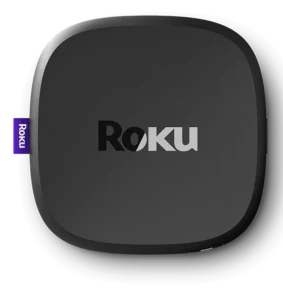
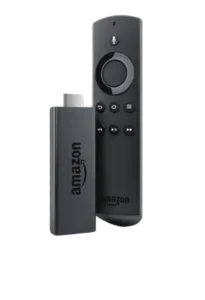
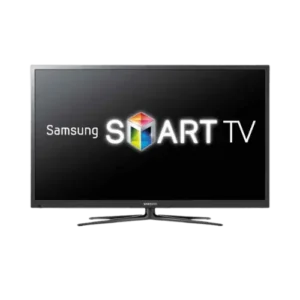
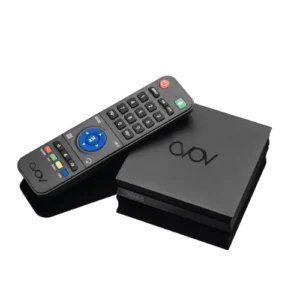
IPTV Installation Guide for Canada
Setting up IPTV at home can be fast and smooth when you have a precise guide tailored to your location and devices. If you're looking for How To Install IPTV In Canada 2025, you've found the right resource to get started with trust and avoid any mess.
Before starting, ensure you have a stable internet connection, a compatible smart device (such as a Smart TV, Android box, Firestick, or smartphone), and a reliable IPTV subscription. The installation process may differ slightly depending on the device you prefer, but the general steps remain similar.
First, download a trusted IPTV player app from your device's app store. Open the app and join your IPTV provider's details, such as the playlist URL or M3U file. Always double-check that you are using the correct login credentials to prevent connection issues. After adding your subscription, the channels should appear on your device, ready to stream.
If you prefer to use IPTV on multiple devices, repeat the process for each one, ensuring your subscription allows multi-device use. For viewers in Canada, it's important to follow local digital streaming guidelines and use services that comply with current laws.
This guide on How To Install IPTV In Canada 2025 aims to simplify the process, helping you enjoy seamless television streaming across your favorite devices. If you encounter technical issues, consult your IPTV provider's support or the help section of your player app for troubleshooting tips.
APPLE DEVICES
(iPhone / iPad / Apple TV)- This app is our number one recommendation.
- You can download it from the store.
- If you don't find it in the store please download it from here.
- Once installed, select login via Xtream Codes API (XC API), and then login using the username, password and url we sent you.
- Go to App Store and download Cloud Stream IPTV Player.
- Open the App.
- On the upper left corner click on the "dashes" icon.
- In the down left corner click on the "+" sign
- Click on load m3u file
- Click on load m3u from web
- Add the IPTV subscription URL that we sent you in your Email.
- Go to App Store and download iPlay TV.
- Upload the IPTV subscription URL link that we sent you.
- Now you will be able to see the playlist.
- Go to App Store and download GSE SMART IPTV pro.
- Accept the EULA Rule.
- Select settings on the left hand corner.
- Locate the menu called "Remote Playlists"
- Select the button named as "+"
- Enter your IPTV subscription URL via selecting add m3u url.
ANDROID DEVICES
(Phones / Tablets / Fire Stick / Nvidia Shield)- Download XCIPTV from the Playstore.
- Open the app.
- Choose Xtream Codes API.
- Enter the username, password and API URL received by email.
- Enjoy.
- We will first install the Downloader app - This app will help you sideload IPTV Smarters (because browser downloads are not allowed)
- Click the Find → Search option on the home screen of FireStick
- Type the name of the app (which is Downloader)
- Click the Downloader option when it is displayed in the search results
- Choose the Downloader icon on the following screen and download and install the app
- Get back to the home screen of FireStick after installing the Downloader app. In the menu bar, click Settings
- In the Settings, choose the option My Fire TV
- When the following set of options are displayed on the next screen, click Developer Options
- Click Install from unknown apps
- Click Downloader to change the status to ON
- Open the Downloader app. On this screen, you need to click the URL textbox on the right side where it says 'http://'
- Enter the following path:
https://www.iptvsmarters.com/smarters.apkand click GO - Wait for IPTV Smarter to be downloaded
- When the download has completed, the Downloader app will run the APK file. Click Install
- Wait for the installation to finish
- Now all you need to do is log in using the xtream code we sent you.
- Go to Play store
- Search for Tivimate IPTV Player and download it.
- Open the app
- Click on Add playlist
- Insert your IPTV subscription URL (will be sent to your email) inside the Playlist URL section
- Click on Okay and wait for the Channels to load.
FireTV Stick
- Click My Fire TV.
- Choose Developer Options.
- Click Apps from Unknown Sources.
- Choose Turn On.
- Return to the home screen and hover over the Search icon.
- Type in "Downloader".
- Select the Downloader app.
- Click Download & Click on Open.
- Select Allow if presented with this prompt & click OK.
- Type the following URL exactly as shown here:
https://bit.ly/32HqzSzand click Go. - Wait for file to download.
- Click Install.
- Return to device home-screen and under "Your Apps & Channels" click See All.
- Scroll down to hover over IPTV Smarters.
- Click on Menu button on remote (3 horizontal lines), then click Move to Front.
- When the App installation is complete open it.
- Click Add New User
- Choose login with Xtream Codes API
- Enter your subscription information and click Add User
- Wait for User added successfully message to appear
- Click your Profile and enjoy!
KODI
- Launch Kodi app
- In the left menu click on TV
- Click on Add-on browser.
- Click on PVR IPTV Simple Client
- Click on Configure
- Select General
- Enter the IPTV subscription URL.
- Wait for some time until you get the notifications loaded.
SMART TVs / LG / SAMSUNG
- Download the Smart One Iptv app from the store. You will need to use the controller app named "Smart One IPTV" to proceed. You can get it for seven days for free. Then you can make a one-time fee of $10 approximately and start using it.
- Once you download the Smart IPTV app, launch it.
- Keep a note of MAC Address that you can see on the screen.
- Now visit this page.
- Navigate to the section named as "From m3u Playlist URL". You need to enter the MAC address in here. You should also include your unique IPTV subscription URL (sent to you by email after your subscription) under the field called M3u.
- Now click on generate.
- Restart the app and you should see the channels.
The procedure is nearly the same as Smart One IPTV.
PC / LAPTOP - Windows
- This app is our number one recommendation.
- You can download it from here
- Just login using the xtream code sent to you by email and you're good to go.
- From the windows store download MyIPTVPlayer.
- Go to Settings, then select add new playlist.
- In the Remote Channel List section enter any name as the list name, and paste the url we provided by email in the url field.
- Go back to Settings and select the channel playlist you just added.
- Go to the channels section and enjoy.
- Download the m3u link we sent by email.
- Open the download file using Perfect player.
MAG
- Navigate to Settings, System Settings, Servers and Portals.
- Set IPTV Beast as Portal 1
- Enter the URL in your email to Portal 1 URL section.
- Leave the name of Portal 2 to empty.
- Leave the URL of portal 2 to empty.
- Save.
- Restart.
- Now you will be able to see the list of channels.
STB Emulator
This tutorial will help you to get a better understanding on how to watch IPTV on your STB Emulator. 'STB Emulator' can emulate the following IPTV set-top boxes:
- Visit Google Play Store and download STB Emulator.
- You need to install STB Emulator and open it. You can now see a section called Mac Address.
- You need to click on "Settings", which is located near top right hand corner.
- Next you need to visit Profiles.
- You should now click on Test Portal. Then you can "Add Profile".
- Click on the "STB Model".
- Select your STB Model.
- Go to Portal Settings.
- Now you can enter the Portal Email, which should have come to your email inbox.
- Now you need to select on Screen Resolution.
- For the screen resolution, pick 1280 x 720
- Exit the app and restart it.
- You can now see the list of channels.
Openbox
- Open up an Internet browser.
- Now you need to enter the M3U URL on it.
- You will be asked to save a file.
- Click on Save as and add any name.
- Now you can copy the file to a USB flash drive. Then you need to connect the USB flash drive to Openbox.
- Now you need to take the remote controller and follow these steps:
- Go to menu
- Go to Network local settings
- Go to Network App
- Go to IPTV Palace
- Press on Yellow Button to read from the USB drive.
- Now you can see the command saying success on Openbox.
If you still have any issues, simply restart Wi-Fi router and Openbox